This blog post will explain in detail step by step procedure to set up a User Defined Search in SAP PI/PO.
This will be applicable on Release 750 and above.
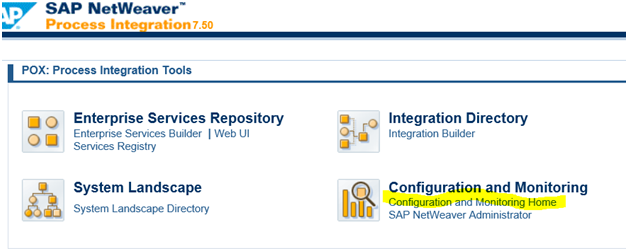
Step 1 : First open the PI homepage
http://<host>:<port>/dir/start/index.jsp
*Follow the highlighted text : Click on Configuration and Monitoring Home
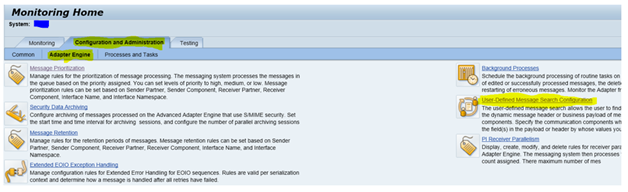
Step 2: Look for User Defined Message Search Configuration in the Adapter Engine Subtab
*Follow the highlighted text
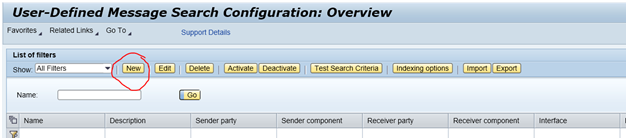
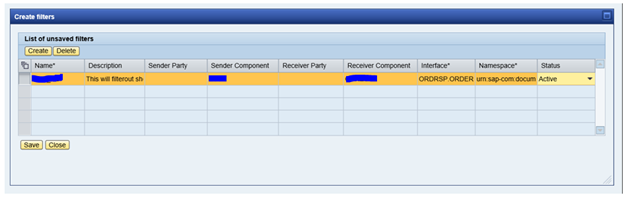
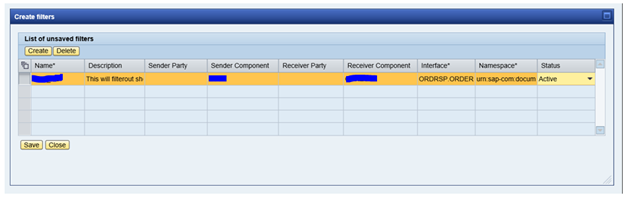
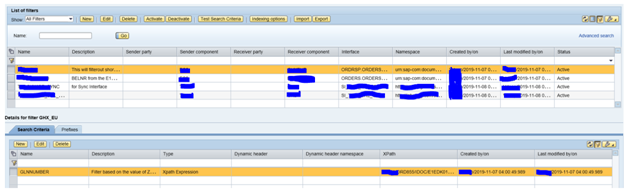
After the filter creation the next step is to create search criteria using Xpath: This will locate the Key Field from the payload.
Note: Make sure to use the value exactly fom Xpath along with the correct prefix. Pre
fix and Xpath could be N1 or P1
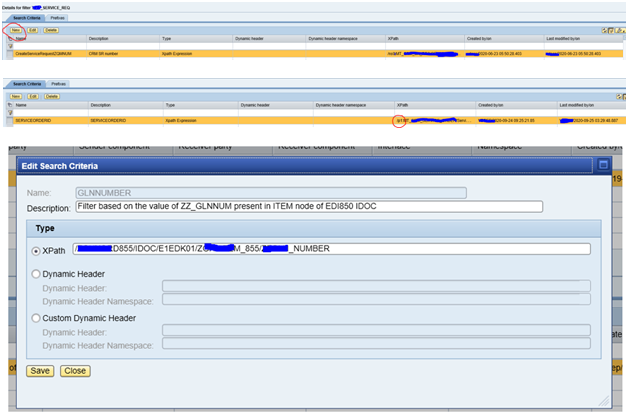

Step 4: INDEXING
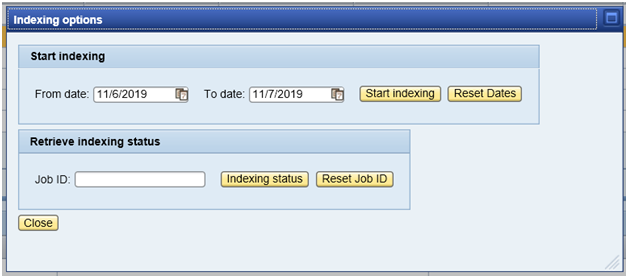
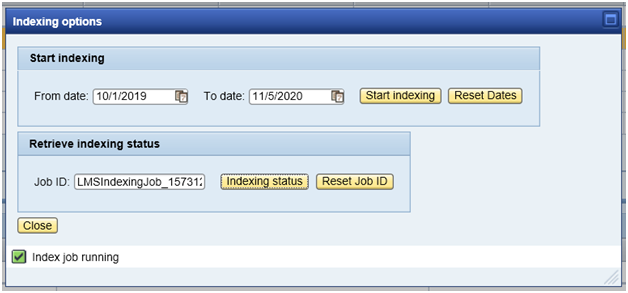
To enable a previously processed messages indexing is needed. This will index all the messges under the observation and make the search works faster. It is advisable to INDEX the messages.
The INDEXING option is allocated right at the top most tabs:
The INDEXING option is allocated right among the top most tabs:
INDEXING JOB_ID:
An indexing job id will be automatically created when Indexing is started.
Final Product will look like this :

INDEXING JOB_ID:
An indexing job id will be automatically created when Indexing is started.

Technical Consultant SAP PO, CPI